JPYC EX は JPYC 株式会社のサービスです。ためるん は JPYC EX の画面を操作できず、登録や発行・償還の条件・手数料は JPYC EX の案内に従います。このページの JPYC EX の画面は説明のための引用で、手順の詳細は各段のリンク先(JPYC 公式 FAQ)をご覧ください。
Getting started with JPYC
As of November 2026. JPYC EX's screens and terms may change; each step links to JPYC's official article (Japanese), which takes precedence
Tamerun's "En" grows with JPYC, a stablecoin worth the same as Japanese yen. JPYC is issued by JPYC Inc.'s JPYC EX in exchange for a yen bank transfer. This page walks first-time wallet users from sign-up to the first deposit, screen by screen.
1Open a JPYC EX account email, identity, details
2Register a bank account payout and name matching
3Register the receiver your Tamerun account (Polygon)
4Issue JPYC reserve, bank transfer
5Deposit with En a minute in Tamerun
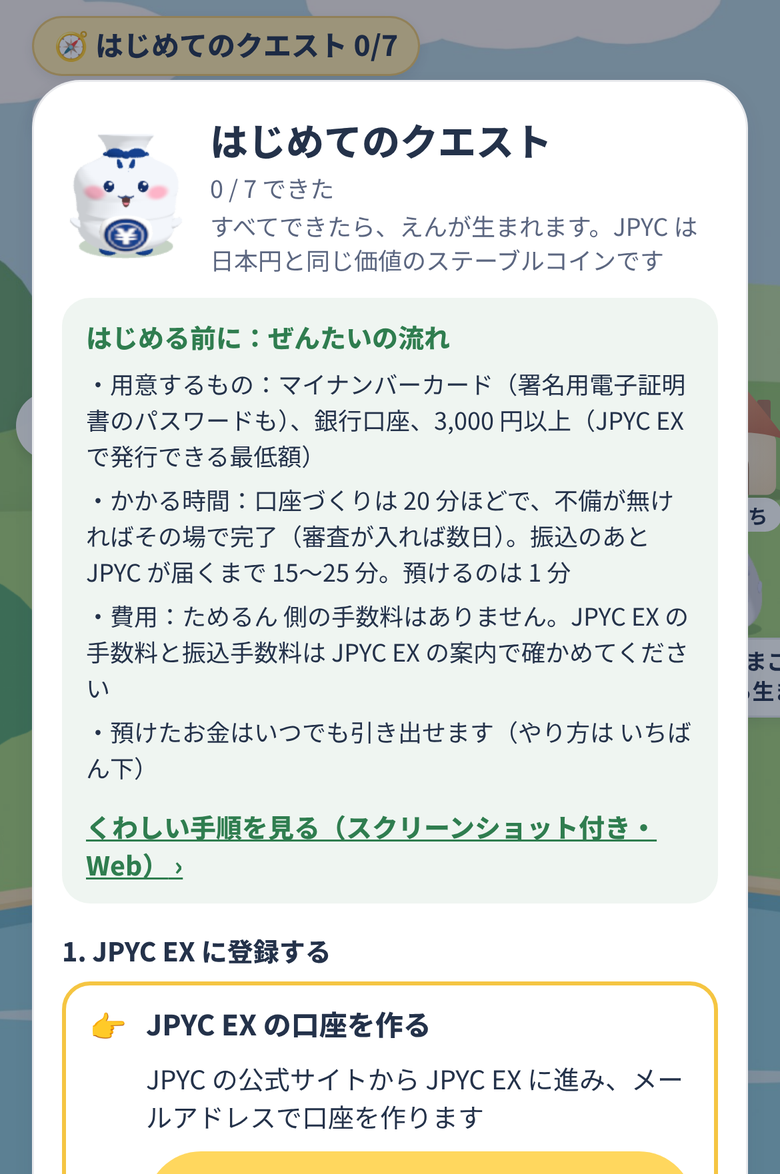
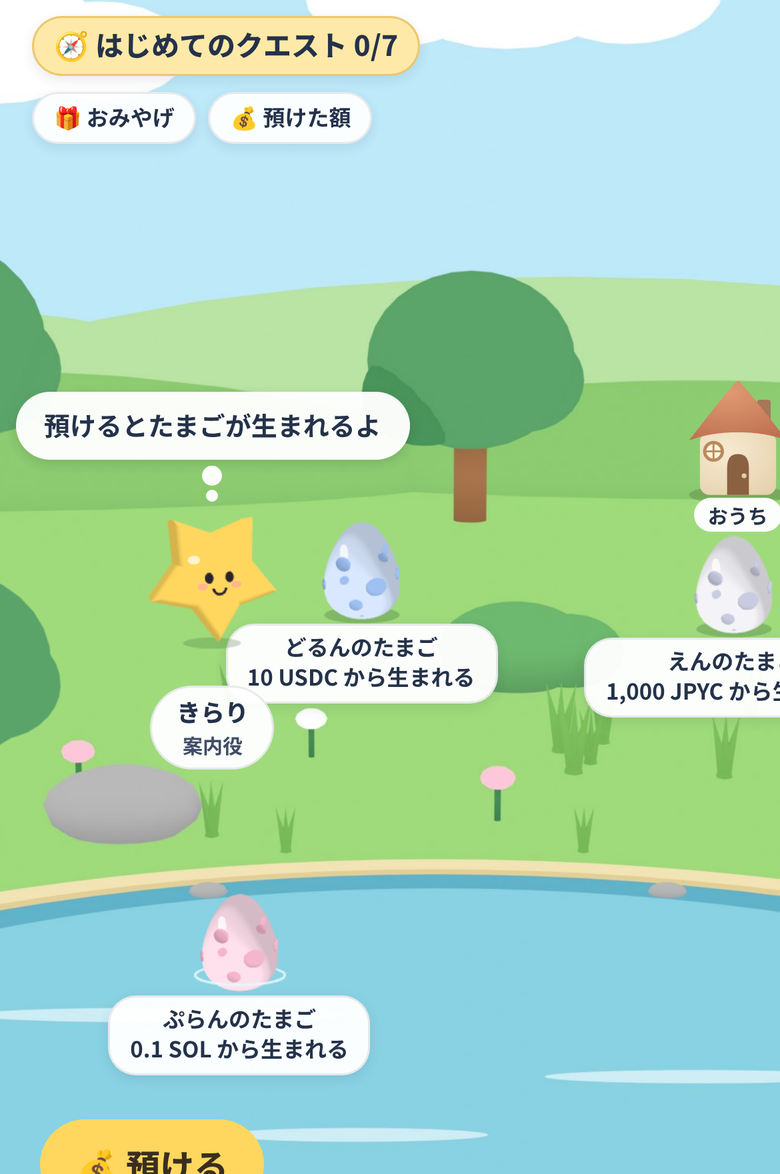
Tamerun's Home. Your deposits become characters that grow (En is the JPYC one)The app's first quest walks you through the same steps one by one; this page is the detailed version
Before you start
You need: a My Number card (and its signing-certificate password), a smartphone, a Japanese bank account, and at least 3,000 yen (JPYC EX's minimum as of November 2026)
Time: opening the account takes about 20 minutes and usually completes on the spot (a few days if reviewed). JPYC arrives 15–25 minutes after your transfer is confirmed. Depositing takes a minute
Cost: Tamerun charges nothing. Check JPYC EX's guidance for its fees and bank transfer fees
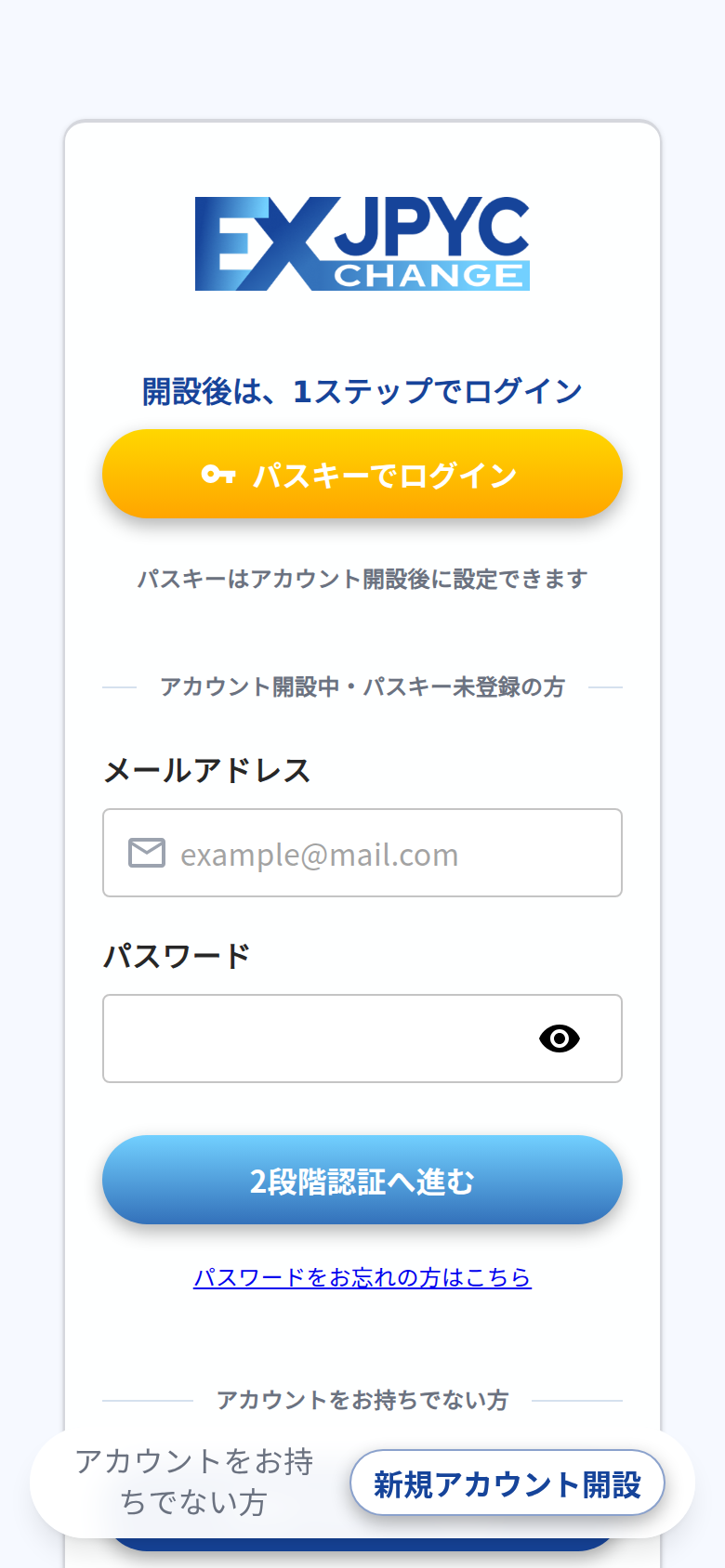
Tap "Open a personal account" on the top page and register your email. Open the link in the email within 10 minutes
JPYC EX entrance. Start from "新規アカウント開設" at the bottomEnter your email
Choose "Personal" and set a password (10–30 characters with lowercase, uppercase, digits and symbols). After logging in, set up SMS or voice two-factor authentication
Set a passwordRegister a phone number for the code
From here, use your smartphone. Confirm the three things you need (a My Number card with the public certificate, the LIQUID eKYC app, the signing-certificate password) and agree to the documents
Preparation checklist and consent
Scan the card in the LIQUID eKYC app and enter the signing-certificate password. No photos. You get the "3 / 5" email when done
Scan the card with LIQUID eKYC
Enter your details. Name and address come from the card. The katakana reading of your name is matched exactly against your bank transfers, so enter it as your bank shows it
Basic details; katakana name as at your bank
If nothing is missing the account opens on the spot and the "5 / 5" email arrives. A manual review, when needed, can take a few days
Completion email
The signing-certificate password (6–16 alphanumerics) locks after 5 wrong tries; your municipal office can reset it. You cannot open an account without the card or from outside Japan.
Log in and open bank account registration on the top page. Enter bank, branch, account type and the 7-digit number
Bank account form
Check that the auto-filled account holder name (katakana) matches your bank exactly; edit if not (edits need JPYC EX's confirmation first). Enter the emailed one-time code and register
Registration complete
If the registered name differs from the name on your transfer, matching fails and the transfer may have to be returned.
3Register your Tamerun account as the receiver
This makes issued JPYC arrive directly in your Tamerun account. JPYC EX calls it wallet address registration. Tamerun's first quest has the button for this step.
In JPYC EX, open wallet address registration → "Connect wallet" → "WalletConnect". A QR code (PC) or a link (phone) appears
Wallet address registrationWalletConnect QR / link
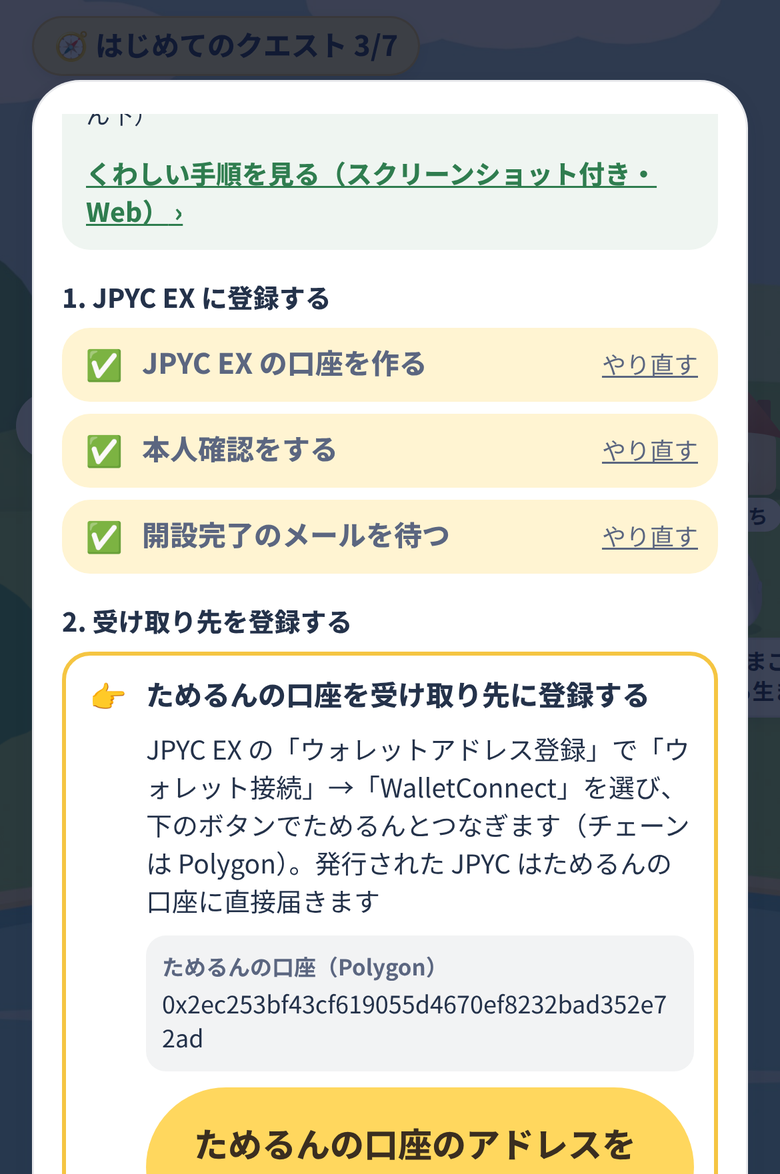
In Tamerun's first quest, tap "Connect to JPYC EX" and scan the QR or paste the link. Approve the connection, then the signature (no funds move)
Tamerun's quest step for registering the receiver. On iPhone a "Connect to JPYC EX" button appears; copying the address works tooApprove connection and signature
JPYC EX shows the network and your Tamerun address. Choose Polygon, enter the one-time code and register. Check it under "Wallet address" on My Page
Choose Polygon and register
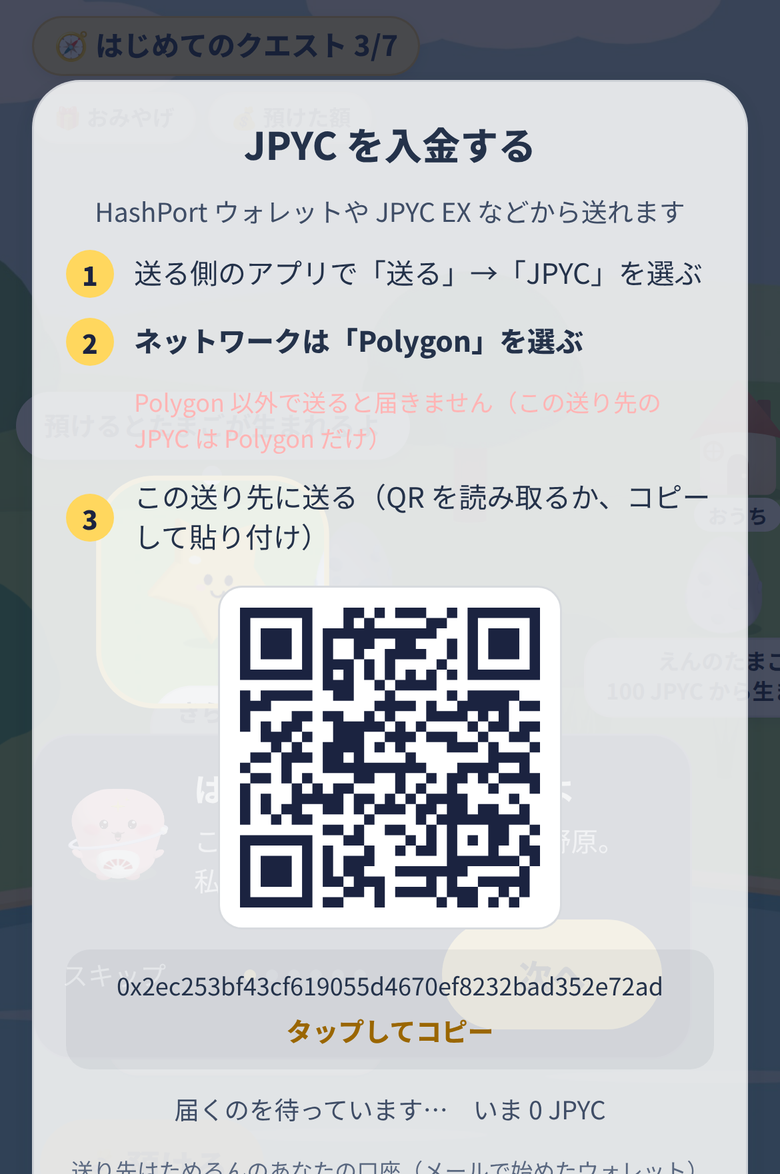
If you already hold JPYC, you can instead send it on Polygon to the address shown under "Send from another wallet" in the quest
Receive JPYC: scan the QR or copy the address, on Polygon
If connecting fails, copy your Tamerun address from the quest and paste it into JPYC EX's form. Addresses are registered per network, up to 10.
Network Polygon, receiving address your Tamerun account, amount in yen (1 JPYC = 1 yen; minimum 3,000, maximum 1,000,000 per issuance). En hatches from 1,000 JPYC
Issue form
Confirm with the one-time code
One-time code
The reservation screen shows the bank account. Transfer exactly the reserved amount, from the registered name, before the deadline
Reservation complete with bank details
Once confirmed, JPYC is issued and arrives in your Tamerun account in about 15–25 minutes on Polygon. Check "History" at JPYC EX. The quest shows "🎉 arrived" and moves on
History shows the issuanceTamerun: arrived
A different amount, a different sender name, or a late transfer voids the issuance and the money is refunded, which requires a return request at your bank. Rapid repeated reservations are not allowed.
5Deposit with En
Tap En (the egg) on Tamerun's Home
Home. Tap En's egg on the right; it hatches when you deposit
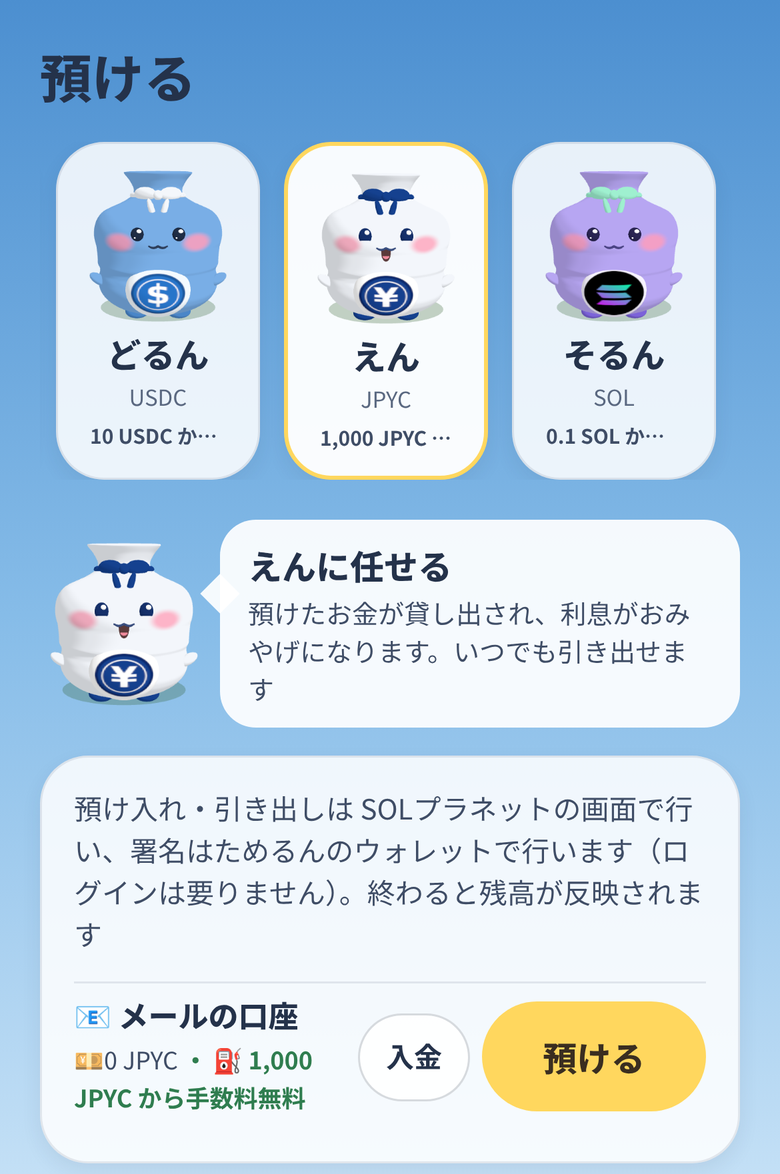
Choose "Deposit", enter the amount and confirm. Deposit 1,000 JPYC or more and En hatches. No fees (Tamerun covers the network fee)
Pick En on the Deposit screen and tap Deposit. No fees from 1,000 JPYCEnter the amount and confirm (Solplanet screen)En hatched
Your JPYC is lent on a Polygon lending market (Morpho) and the interest arrives every morning as an "omiyage". The funds stay in your own account's name
Get JPYC back from En: Home → tap En → "Deposit / withdraw" → "Withdraw". Enter the amount and confirm (withdrawing everything costs no fees). JPYC returns to your Tamerun account (Polygon)
Withdraw screen
Turn JPYC back into yen (JPYC EX calls it 償還, redemption): open "Redeem" in JPYC EX; choose Polygon, your registered Tamerun address as the sender, and the amount
Redemption form
Send exactly the reserved amount of JPYC to the address shown before the deadline. From Tamerun, use "Send" on En's screen. Once confirmed, yen is transferred to your registered bank account
Tamerun: Send to JPYC EX's address
JPYC sent from an unregistered address, in a different amount, or after the deadline is not redeemed. Check the address, network and amount before sending. Follow JPYC EX's guidance for terms, fees and timing.
Trouble?
JPYC hasn't arrived: issuance follows confirmation of your transfer and takes 15–25 minutes on Polygon. Check history at JPYC EX; pending transactions trigger an email. Also check that the registered address matches your Tamerun account on Polygon
Can't connect: paste the link instead of scanning, or copy your address and paste it into JPYC EX
JPYC EX is a service of JPYC Inc. Tamerun cannot operate JPYC EX's screens; terms and fees follow JPYC EX's guidance. JPYC EX screens on this page are quoted for explanation; see the linked official FAQ for details.